
Account Setup Guide
A complete walkthrough of setting up your Edge Network account, from signup to security configuration. Get your account production-ready in 5 minutes.
What you'll set up:
Get Started
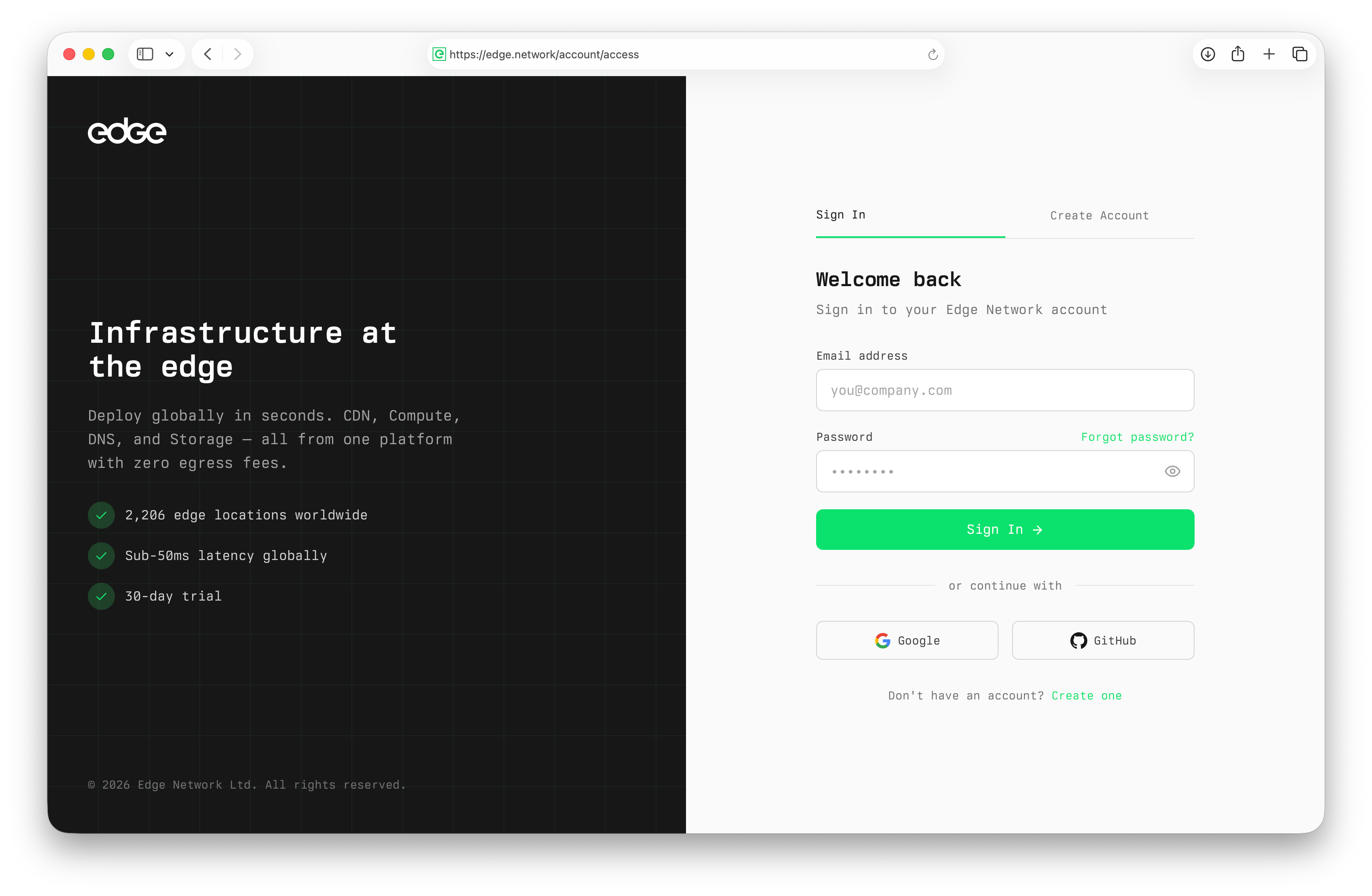
Head to edge.network and click the "Get Started" button to begin the signup process.
- Visit edge.network
- Click "Get Started" in the top navigation
- You'll be taken to the account creation page
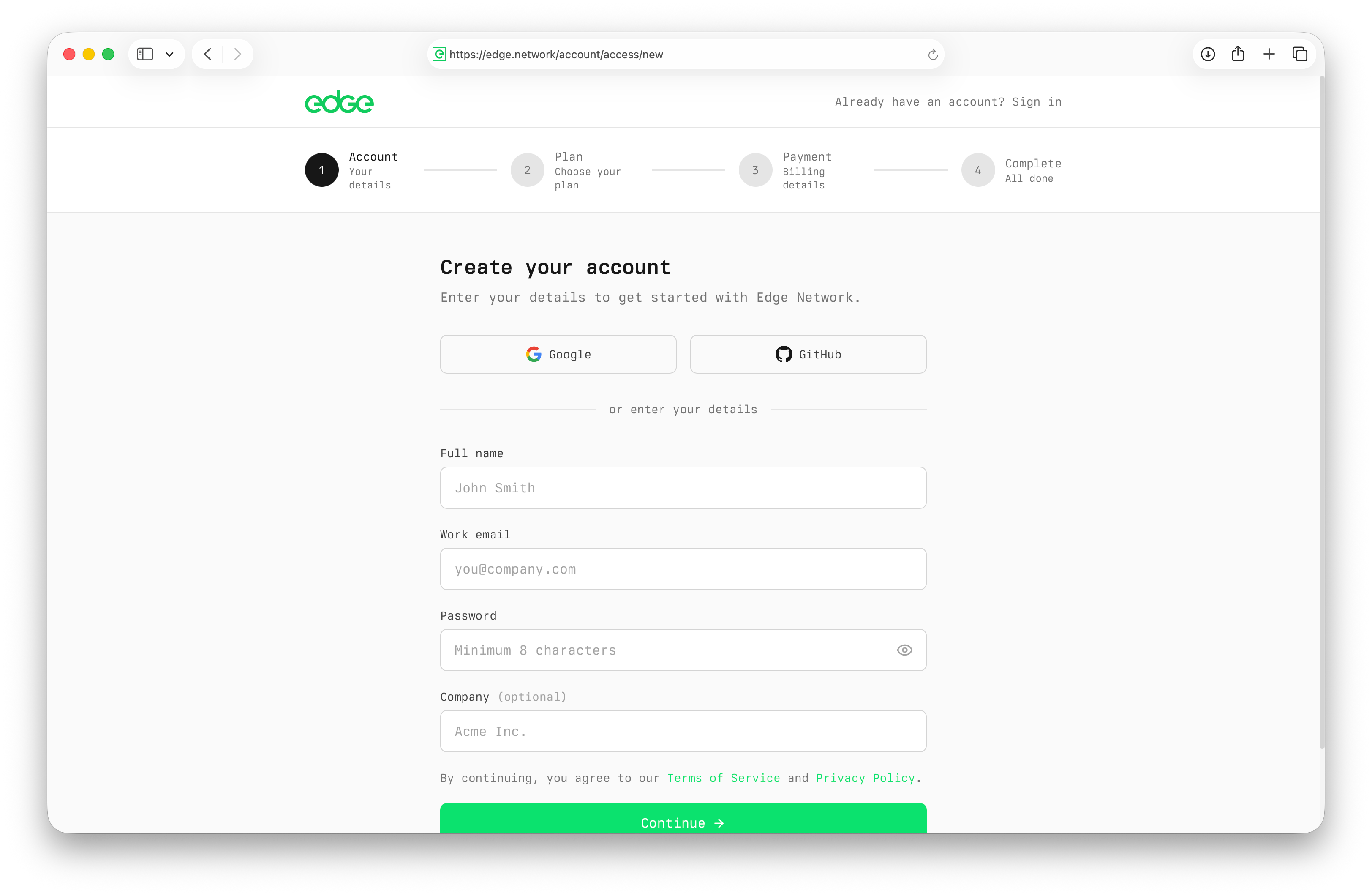
Create Your Account
Enter your details to create your Edge account. You'll need a valid email address and a secure password.
- Enter your email address
- Create a secure password
- Accept the terms of service and privacy policy
- Click "Create Account" to proceed
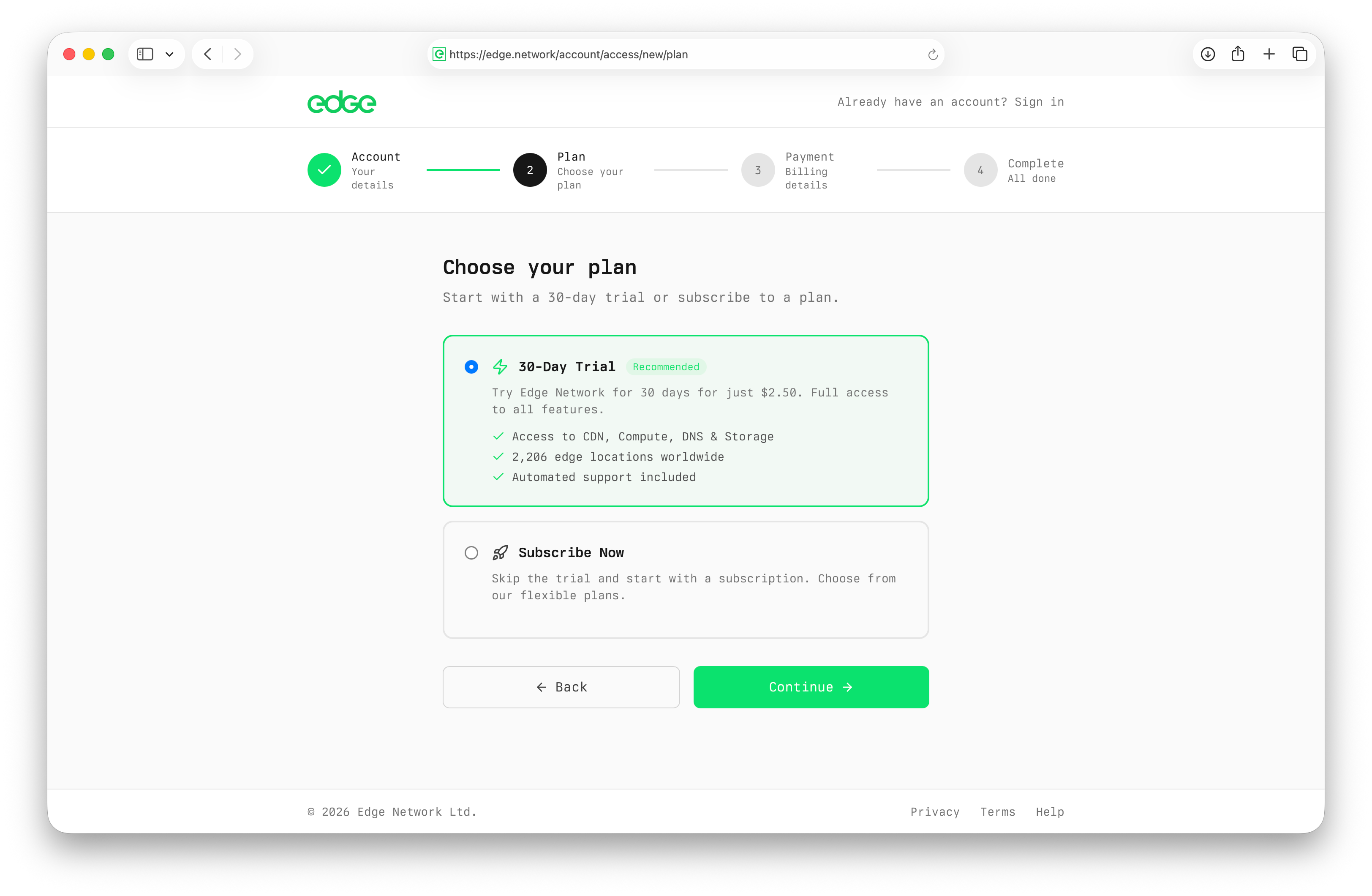
Complete Your Profile
Add your details to personalise your account and help us provide better support.
- Enter your full name
- Add your company or organisation (optional)
- Select your primary use case
- Choose your preferred timezone
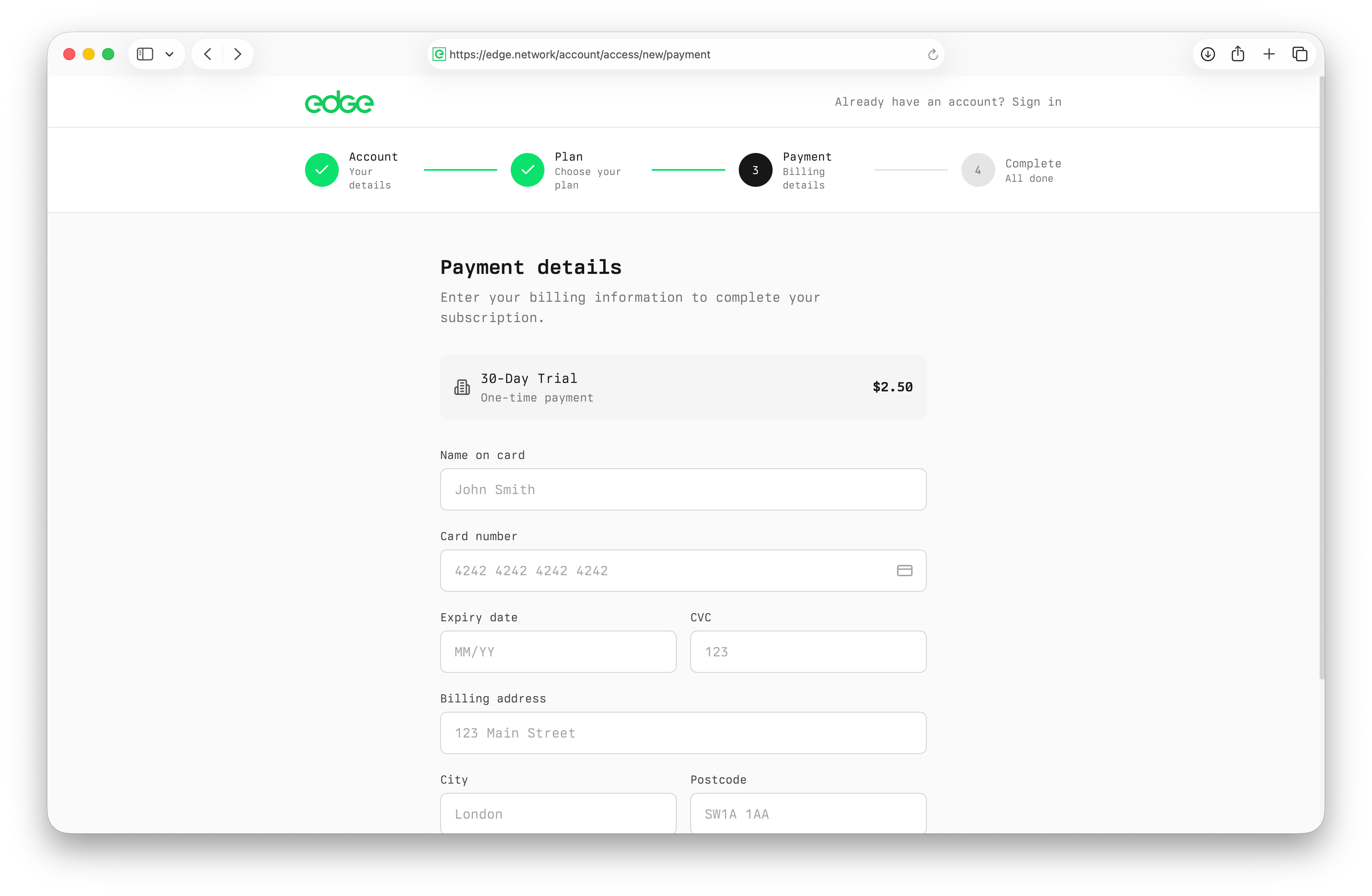
Add Payment Method
Add a credit or debit card and pay $2.50 to start your 30-day trial. This small upfront charge helps us prevent abuse and keeps the platform secure for everyone.
- Enter your card details securely
- Add a billing address
- You'll be charged $2.50 immediately
- Trial begins with $2.50 in credits
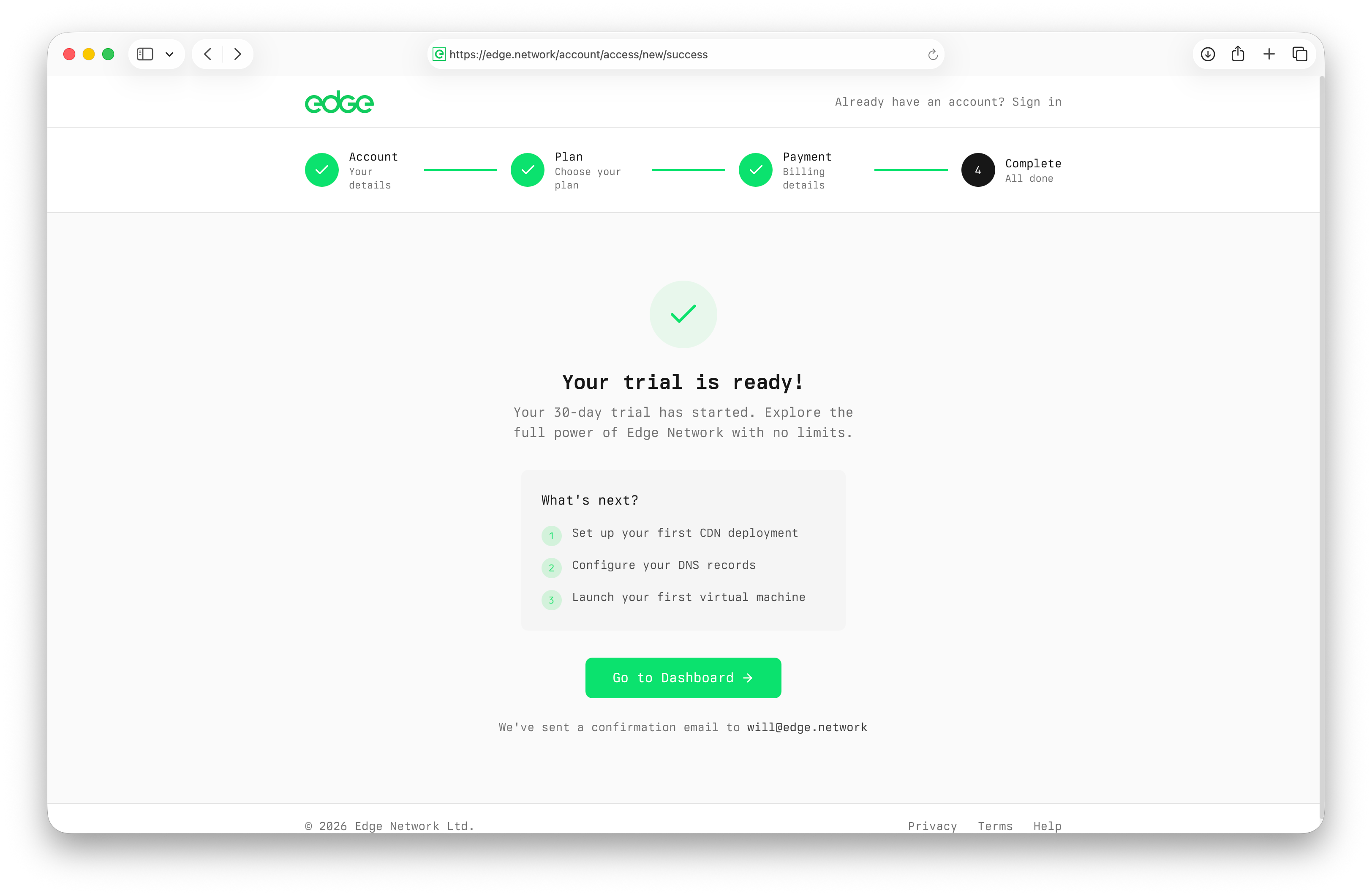
Your Account is Ready
You're all set! Your Edge account is now active and you can start deploying resources immediately.
- You'll be taken to your dashboard
- Your 30-day trial is now active
- Start deploying CDN, Compute, DNS, or Storage
- Check out the Quick Start guide to deploy your first resource
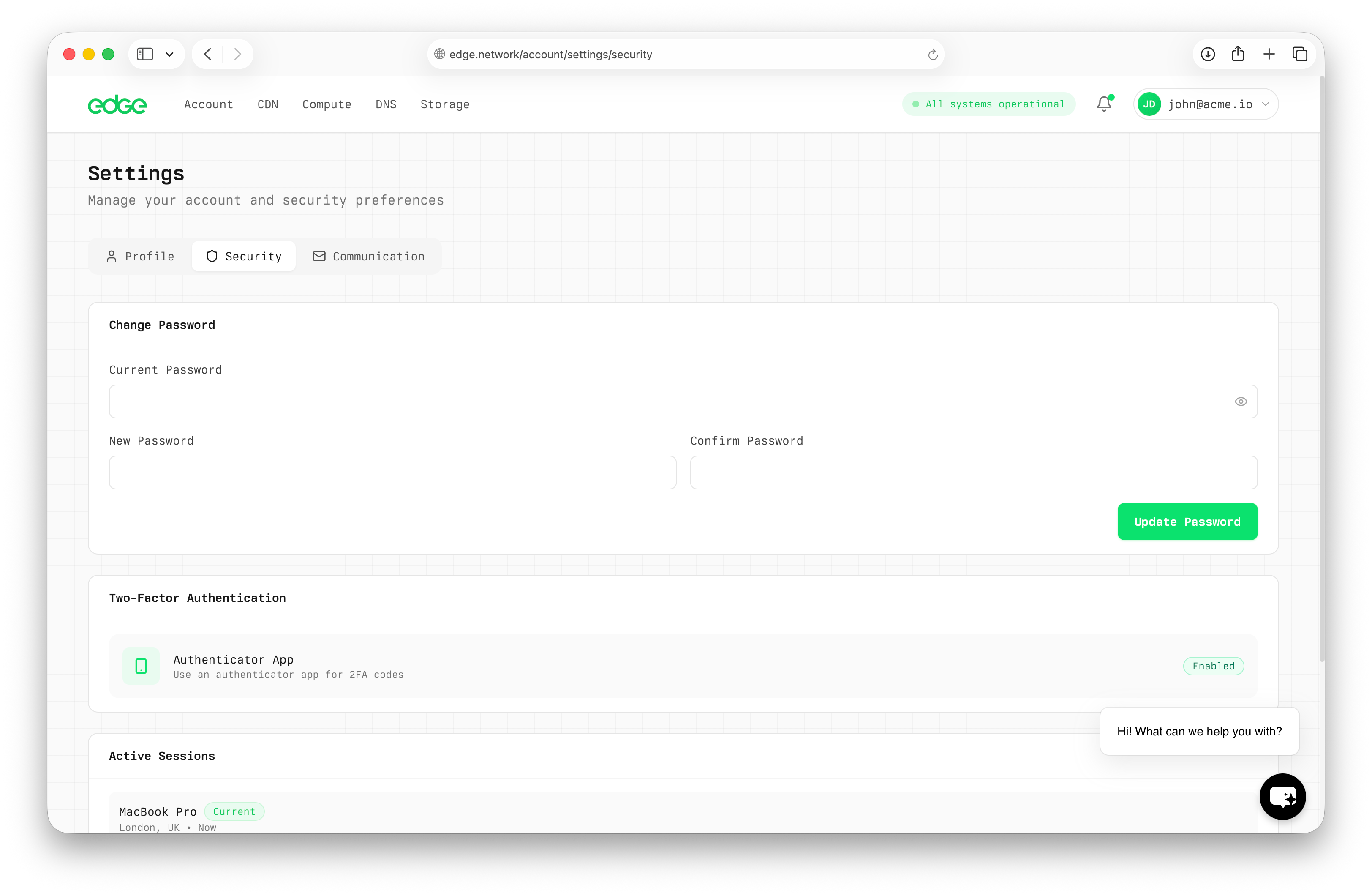
Configure Security
Secure your account with two-factor authentication. We strongly recommend enabling this.
- Navigate to Settings → Security
- Click "Enable 2FA"
- Scan the QR code with your authenticator app
- Enter the verification code to confirm
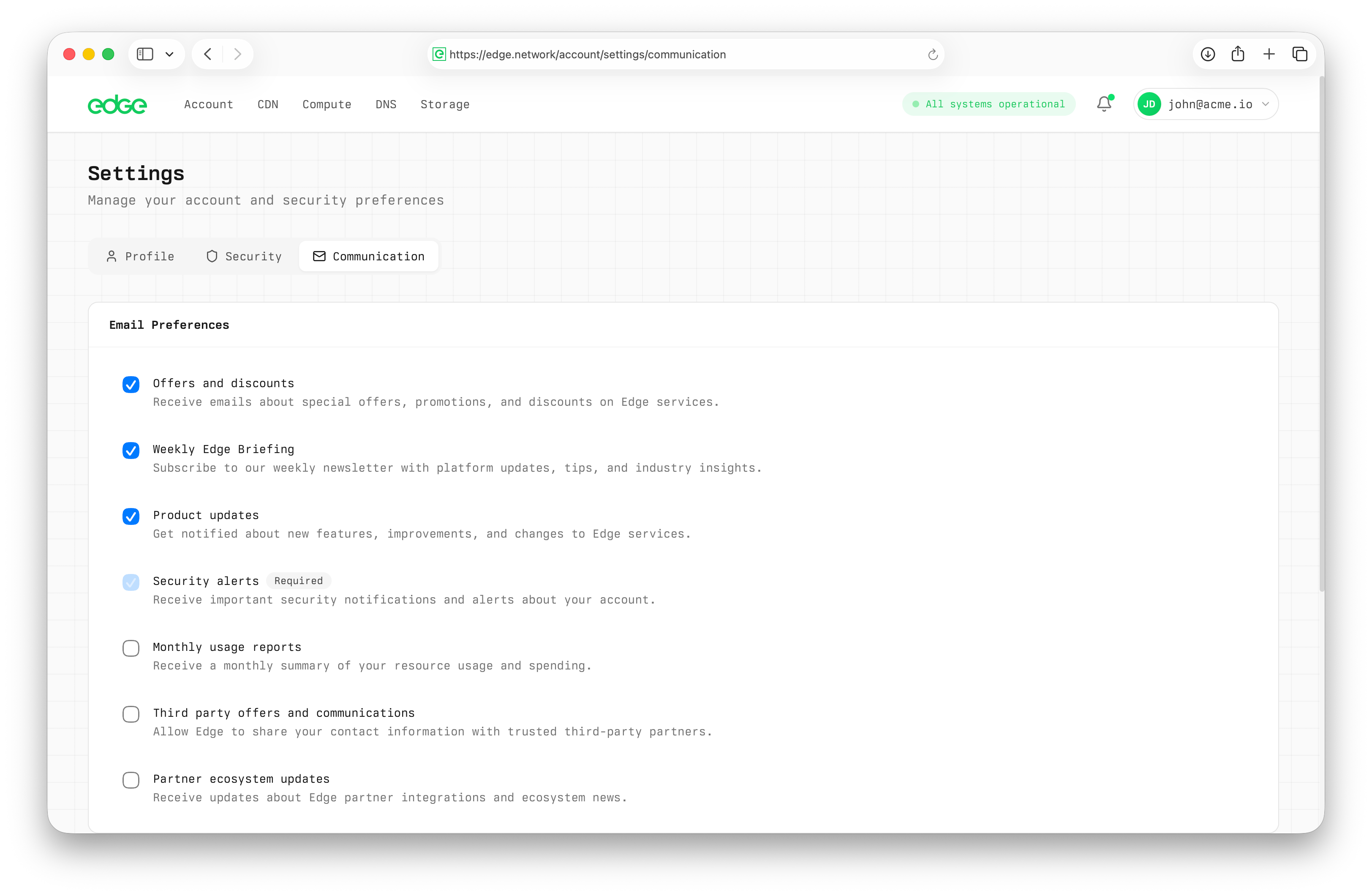
Set Up Notifications
Configure how and when you want to be notified about your account and services.
- Navigate to Settings → Notifications
- Choose email, SMS, or both
- Select notification types (billing, alerts, updates)
- Set your preferred frequency
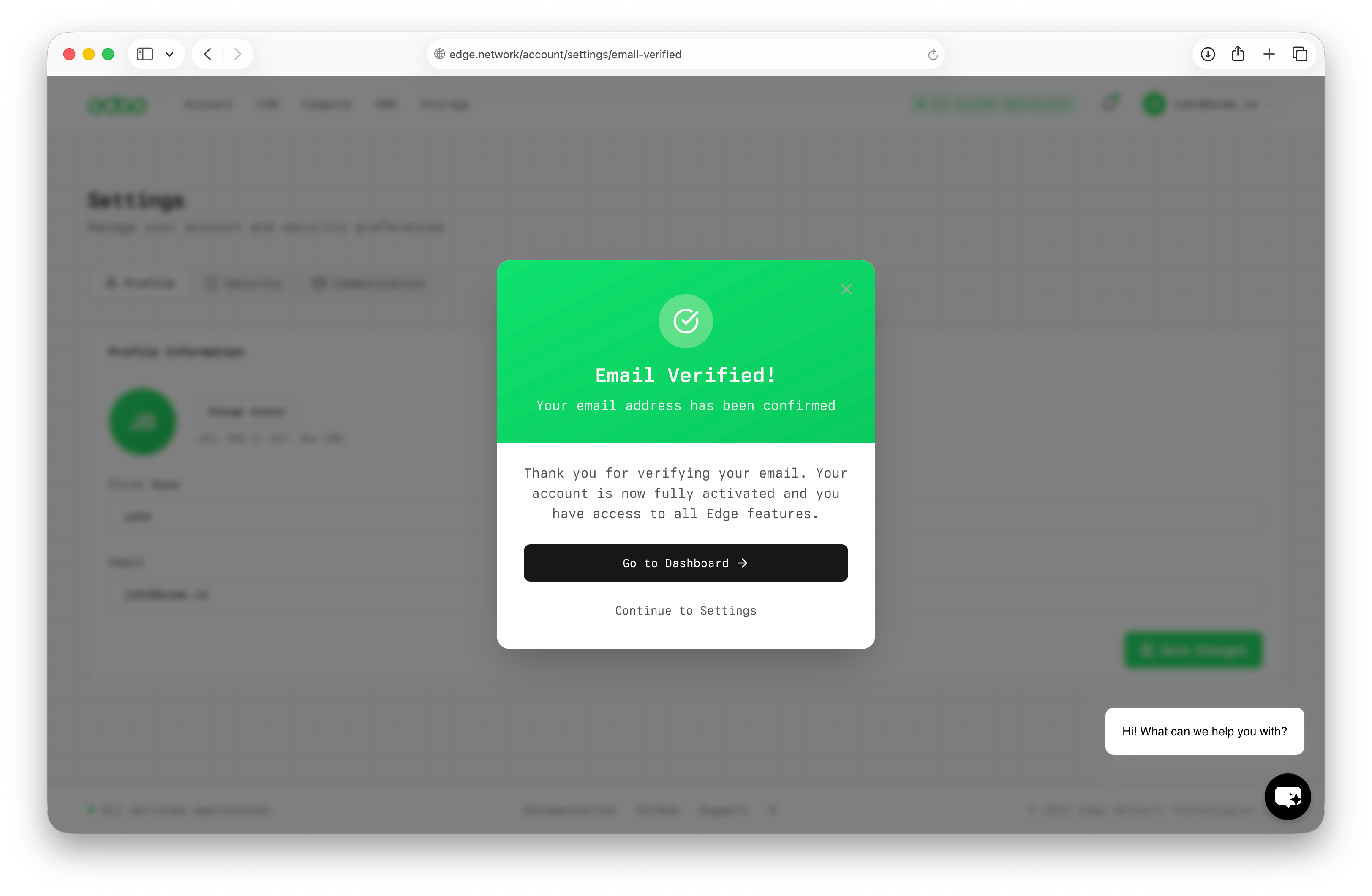
Verify Your Email
Complete this step anytime within 24 hours of creating your account. Check your inbox for a verification email and click the link to confirm your address.
- Check your email inbox (and spam folder)
- Click the verification link in the email
- You'll be redirected back to Edge
- Verification must be completed within 24 hours
Account ready!
Your Edge Network account is fully configured and secure. You're ready to deploy your first resource. Check out the Quick Start guide to get going.